


Use Google Search Console Like An Expert: Your Ultimate Guide
March 21, 2023 | Nitya Jain
Table of Contents
What kind of content does your audience enjoy? Are they finding your website interesting and informative? Or do you want to know if your SEO efforts are paying off?
If you’ve got a website, you must be curious to find answers to these questions. And what if we tell you that there’s a free tool out there, the one that could accurately give you results of your performance? Wouldn’t that be just a cherry on the cake?
So, after talking to some industry experts in digital marketing companies in Dallas, we have unraveled an excellent tool that could be super useful to grow your business forward.
What is Google Search Console?
Google provides Google Search Console (GSC), a free, powerful SEO tool that gives tons of details about your website’s performance, issues, and workings. Any Dallas digital marketing agency would suggest that SEO specialists and business owners use such a valuable tool.
What is Google Search Console Used For?
Google Search Console is indispensable for businesses online, looking to maximize their success, but somehow, several businesses seem to overlook that. It’s unfortunate because Google Search Console has delivered some amazing results that too without going premium.
Here are some benefits of using Google Search Console:
- Confirm that Google can see, crawl, and index your website
- Troubleshooting issues like mobile-friendliness
- Assess security issues
- Check how your website appears in SERP
- Analyze the searches and search results that include your site
- Understand specific search results that drive traffic to your site
The benefit of having GSC is that anyone can use it. Whether you’re a business owner, searching for your website’s performance in search results or an SEO expert reviewing the indexing issue or backlinks, Google has designed this platform for every individual and experience level.
How to Add Your Website to Google Search Console?
Follow these steps:
- Sign in to your Google account. Make sure you’re using a business profile and not your personal account.
- Open Google Search Console and hit “Start now”.
- Add a New Website to GSC (If this is the first site you want to set up in Google Search Console, you would see a welcome message and hit “Start”). In the dropdown, click “+ Add property”.
- Add your domain. Choose the domain and enter the URL. (Your site domain is your website’s name, minus http(s):// and www.)
- Verify your account.

How to Link Google Analytics with Google Search Console?
Linking GSC with Google Analytics provides you with keyword data inside Analytics, and Dallas digital marketing agencies say that it eases up your tasks. But, of course, you need to ensure that Analytics is set up on your website. If yes, then here’s how you can link it with Search Console:
1.Open Google Analytics. Go to the property you want to link to Google Search Console.
2. Click “Admin” and go to the “Property” section.

3. Now under the “Product Link” section which is a subsection of “Property”, click on “Search Console Links”
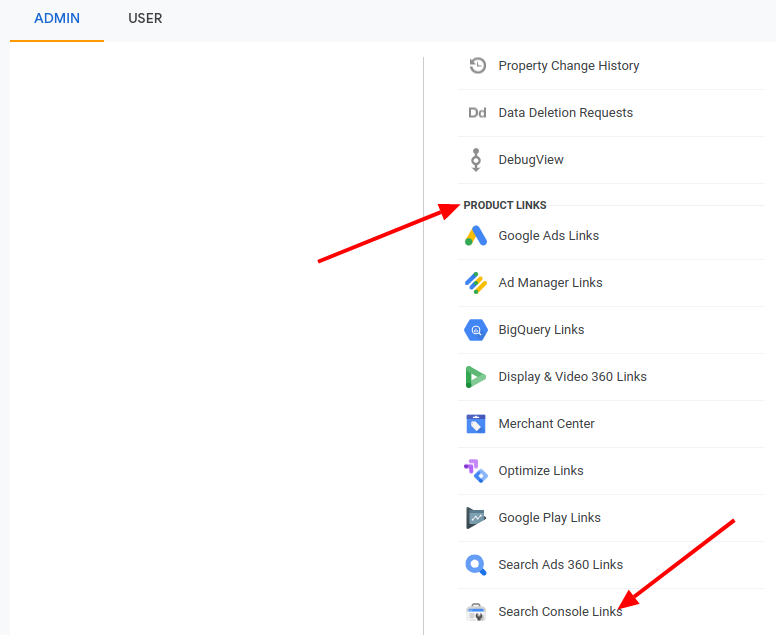
4. Click on the “Link” button in the top right corner

5. Now add the property from the drop-down menu
6. Select your website and hit “Save”.
Done! You’ve successfully linked your Google Analytics account with Search Console.
Key Features of Google Search Console
Once you’ve been verified, you can start using GSC. When you click through the dashboard, you’ll notice some options on your left with various dropdowns. This will provide you with insights.
It’s important to use GSC with changing times because today, more than 92% of global traffic comes from Google Search, Google Maps, and Google Images.
To simplify, we will explain the important features you can use to optimize your website.
1. Overview Report
The first thing you notice on the left sidebar is an Overview Report. It includes a significant summary of your website. This tool captures criteria, like indexed pages, page experience, sitemaps, search analytics, and enhancement report.
2. URL Inspection Tool
This helps test run how Google views a particular page on your site.
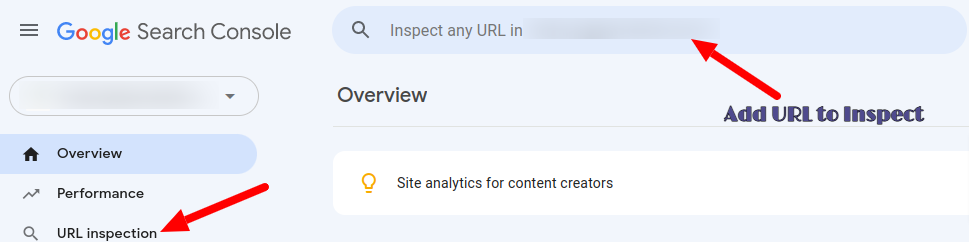
It’s a helpful tool to ensure whether a page is crawled by Google and troubleshoot the problem if the page doesn’t appear in the search result.
One can also determine the errors linked to mobile usability, HTML, and JavaScript.
3. Performance Report
In the left sidebar, you’ll find Performance, which gives you an outline of how your website appears on SERP, including clicks, impressions, CTR, positions, and queries.
The filters at the top, help sort data based on date, location, search type, and more. With this information, you will understand the effect of your SEO.

The performance report has four options to be checked out:
- Clicks – This shows the total clicks you’ve gotten from SERP.
- Impressions – The number of times your site has appeared in the SERP results. As long as the user doesn’t click the URL, it is counted as an ‘Impression.’ If the impressions are high, it’s good news because it means that Google is showing your website in the results.
- CTR – Or click-through rate is a percentage showing how often users have clicked from the search results to the website.
- Position – Gives you the average position in search results the site appears in.
Discover
Discover on Google was implemented back in 2018 and has been a popular way to stay updated on all your favorite topics, even when you’re not searching for anything.
The Discover feature on GSC help understand statistics and answer these questions:
What content performs well in Discover?
How often is your website shown in people’s Discover?
How does your content perform differently in Discover than in traditional search results?
4. Index Report
If you want your page to be ranked and shown to the users, then it needs to be crawled and indexed. What happens is that Google finds the URL, examines the content, and directs the details to the index.
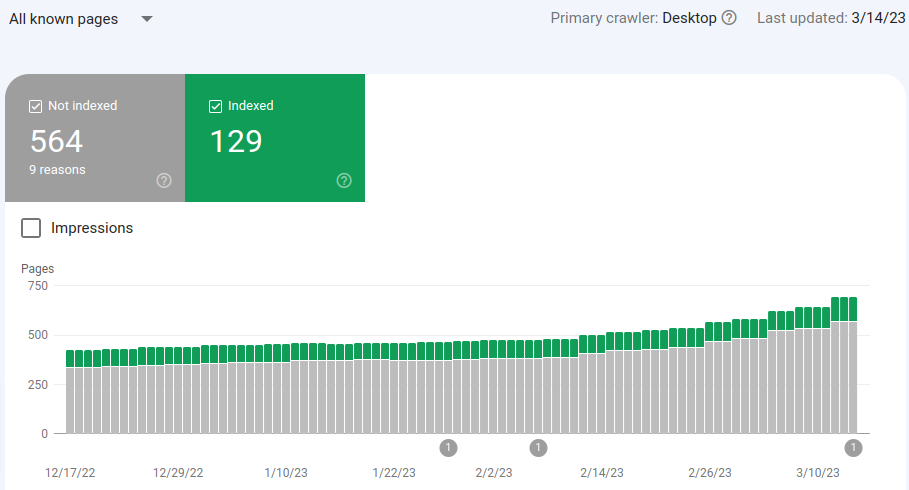
In order to get the Index Coverage, select “Pages” on the left sidebar in the index section. In the upper left corner, you’ll find:-
All known pages – showing URLs that Google discovered
All submitted pages – URLs submitted in a sitemap
Unsubmitted pages only – URLs not present in the sitemap, which Google discovered through links.
Don’t worry if only a handful of pages are indexed than what you think should have been. Googlebot chops out the URLs it finds duplicate and having no index meta tag. Additionally, you might also notice that your robots.txt file has disallowed several URLs from crawling.
5. Experience Report
This tool provides business owners with data that shows the website visitor’s user experience report. Here, Google analyses the experience metrics for particular pages and utilizes them as ranking signals for search result URLs.

Here are three criteria used by Google:
- Core Web Vitals – Examine your site’s loading speed and overall stability. Get ratings of Good, Poor, or Needs Improvement.
- Mobile Usability – In order to rank well on mobile devices, you need to ensure that there are no mobile usability errors in the mobile URL.
- HTTPS Usage – To get a ‘Good’ page ranking in Google, pages need to serve over HTTPS.
6. Shopping Report
Rolled out in 2022, the shopping report gives you information on your product snippets, merchant listings, and shopping tab listings.
The ‘Shopping tab listings’ helps e-commerce businesses show their products on Google.
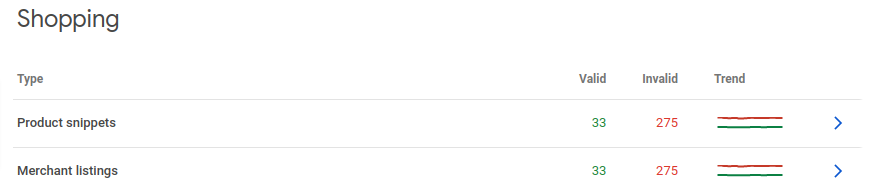
The ‘Merchant Listings’ report help add product structured data. Those who have implemented product markup can see the Shopping tab listings.
This streamlined procedure gets products on the Shopping tab on Google and helps retailers reach people searching for these items.
7. Enhancement Report
Again, on the left sidebar, you’ll find the Enhancements tab. It’s where all insights are collected, and improvement of which can lead to rich results.
In this tab, you’ll find breadcrumbs, videos, and details on your product’s structured data. This option shows the number of enhancements or the number of errors or warnings your site has. The Enhancement Report only shows the schema that Google found on your website.
This report will further guide you in fixing the issues that disrupt your performance in search.
8. Security and Manual Actions Report
There are two sections below this tool:
- Manual Issues – Google issues this action when the reviewers decide that pages on your site don’t comply with the webmaster quality standards.
When Google strikes you with a manual action, you can scan the report for issues and make alterations and request a review.
If everything’s well, you’ll see “no issues detected” on the page.
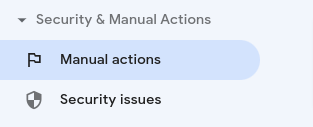
- Security Issues – This section suggests if your website has been hacked or acting suspiciously. This could harm the visitors. If your website has security issues, you’ll see a warning message in the search result. There are three types of security issues:
- Hacked content – Content published on the site without your permission.
- Malware/Unwanted Software – To harm a user’s device.
- Social Engineering – Harmful content, which can make users do something risky.
9. Legacy Tools and Report
In the Legacy Tools section, you can find data on crawling, international targeting, URL parameters, and various other tools to keep a track of your domain activity in Google search.
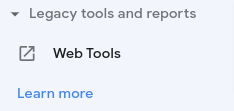
The Legacy Tools and Report include:
- International targeting – Where you can set a specific target country
- Removals – Help remove URLs from the search results
- Crawl stats – See the crawling frequency by Google
- Messages – From Google
- URL parameters – Let Google know the parameters you’re using
- Web Tools – Other tools that could be useful for your website.
10. Links
This tool shows all links pointing to your site. They focus on links that do not help with search engine results page rank. Once you click, you can see columns, like external and internal links.
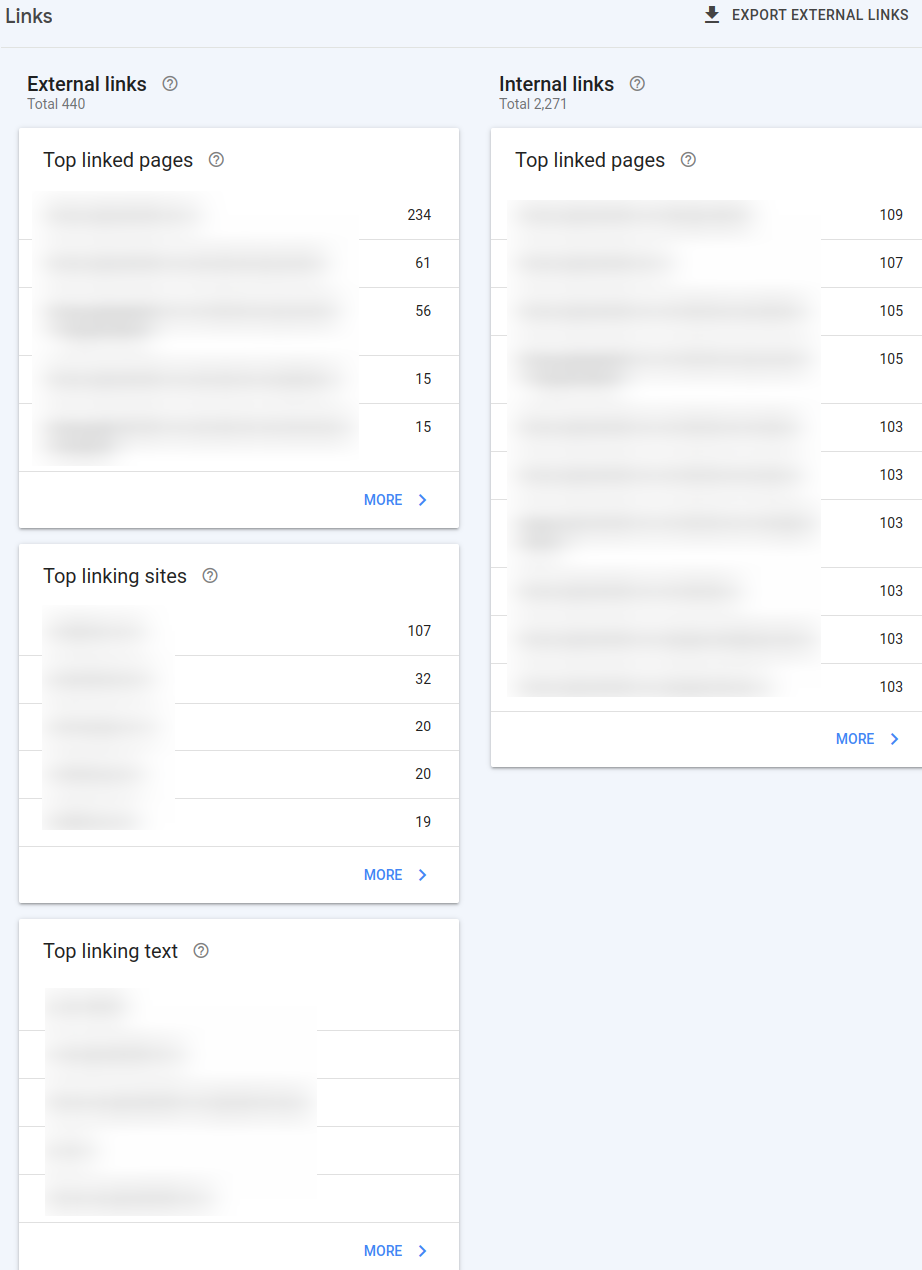
In the external link section, you’ll come across three reports – Top Linked Pages, Top Linking Sites, and Top Linking Text.
In the internal link section, you’ll see Top Linked Pages.
Each of these links involves a gateway to more results that can be clicked.
5 Ways Google Search Console Can Improve SEO
Did you know that Google accounts for about 83% of the global search market? And 68% of online experiences start with a search engine.
And now that you’ve understood the features of Google Search Console, we will help explain how you can improve your website’s SEO.
After speaking with professionals at Dallas digital marketing agencies, we’ve accumulated some GSC SEO tips for you:
A. Use Google Search Console for Keyword Research
There’s no denying that keyword research is a vital part of optimizing any website. This is why GSC has a simple way of displaying words that users search to find a website in “Queries”.
Search Console allows you to see the number of clicks and impressions this search term has and to identify the words or phrases that can be used as keywords.
B. Keep it Mobile-Friendly
More than 58% of all website traffic around the world comes from mobile phones.
As you might already know, Google crawls sites to check their responsiveness. This includes the time taken for the pages to load and how mobile-friendly the site is.
GSC provides you with pages that need refinement to improve the mobile experience. These sites that have a good mobile experience, rank higher than the ones that do not. So, make the best use of GSC to make your website mobile-friendly.
This needs careful consideration because, by the year 2025, about 72% of internet users will access the web solely from their smartphones.
C. Fix Sitemaps
Sitemaps track how Google reads your sitemap and if all your pages are seen as you want them to be seen.
In GSC, you can submit your site’s XML sitemap. Also, websites need to keep the XML sitemap updated. In case you add new content or page to your site then you should update your site’s sitemap. This is crucial because it aids Google to crawl each URL on the site.
D. Optimize Pages Losing Organic Traffic
If any of your pages are getting organic traffic today, you need to ensure that it continues to perform the same in the future. GSC allows you to check the pages that are losing organic traffic.
Go to performance and change the date to track the traffic over different periods. This data will give you a better understanding of what was trending on your website.
E. Ensure Structured Data is Properly Implemented
Rich snippets are made with structured data that helps Google understand your website.
In the Google search result, you might notice that some results have more details than the others. By using GSC, you can check if your structured data is functioning properly.
You can identify the errors and check the pages that are affected. Once you start implementing the changes, you can significantly improve your CTR and gain more clicks on your pages.
Concluding Note
Google gave businesses a free tool, like Google Search Console to fix SEO and get flying on Search Engine Results Pages. And making the best of the Google Search Console features, as explained in this article will help you achieve good results consistently.
Sure, when you work with a renowned digital marketing company in Dallas, you’ll have a team of experts consistently using GSC to maximize your website’s visibility online. By taking help of the experienced and skilled SEO professionals, you can focus on other important areas of your business while these experts would work to ensure your site is at the top of the search.
Undoubtedly, GSC is user-friendly and appeals to a range of users, be they hobbyists, small business owners, or SEO specialists.
So, what do you think of Google Search Console? Has it helped you increase your ROI?


RELATED POST

A quick look around will make you realize how everything has gone digital. From groceries to clothes, electronics to utility...
READ MORE
Good navigation is what makes your visitor find stuff quick and easy. Believe me it not easy for the designer...
READ MORE
A web development company can develop or design your website in the most creative way possible, but it can turn...
READ MOREPartners



Copyright © 1999-2026, B3net inc.